
21 Feb Enabling Screen Capture on a Poly SIP Phone
For years Poly or as it was formerly known Polycom supported the ability to screen capture a Phone which is obviously a very useful feature for remotely troubleshooting a problem or even to get a visual status of a Phone as an administrator. Unfortunately the Teams Admin Centre or TAC doesnt have this capability and neither does HP/Poly Lens (for Phones specifically) which is the Cloud SaaS device management solution for managing Poly endpoints. Similar to how we used to do this years ago on VVX models it is possible to modify a phones local configuration with a few additional parameters which can allow an administrator to view the remote screen of a phone. This blog post will cover the simple steps on how to enable this.
Login to your phone
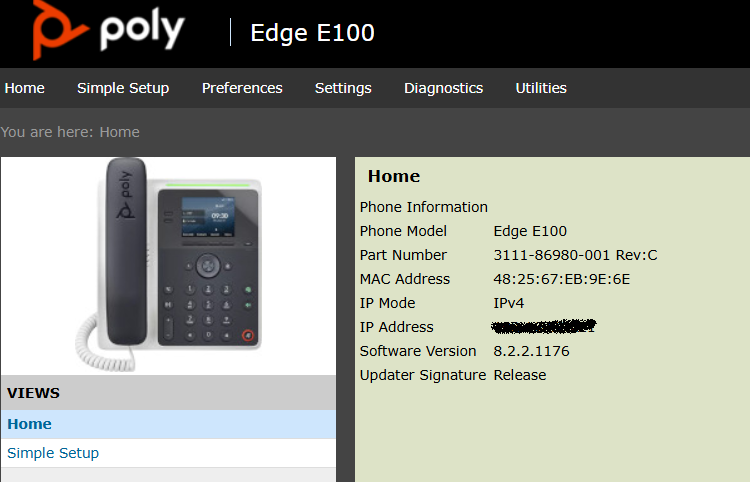
Login to the web sever on the phone by browsing to the phones IP address. Usually the web server is enabled by default on HTTPS but if its not you’ll need to browse on the Phones menu to the Web Server Configuration and set this to HTTPS Only. Once this is done you’ll see the screen below after entering the password. Again usually the default is 456 which you need to change!!
Export Configuration
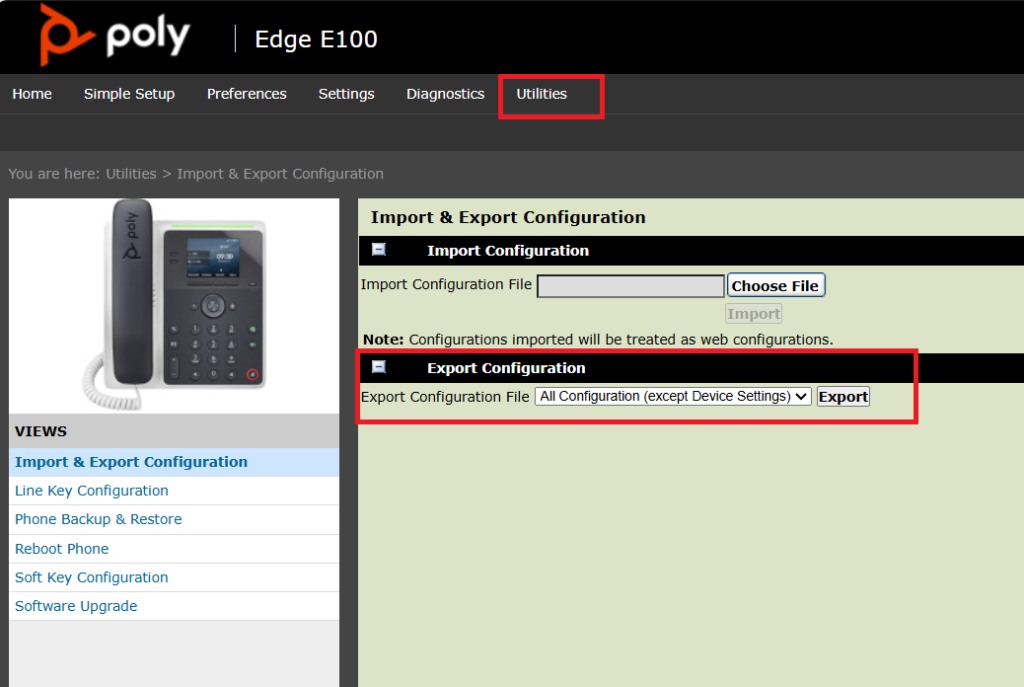
Browse to Utilities > Import & Export Configuration. From the drop down ensure All Configuration (except Device Settings) is selected then click the Export radio button. Save the file to your PC and open it with your favourite text editor.
Edit the config file
Add the following three lines into the config file and save the file.
up.screenCapture.value=”1″
up.screenCapture.enabled=”1″
up.screenCapture.allowed=”1″
Upload the config file to the phone
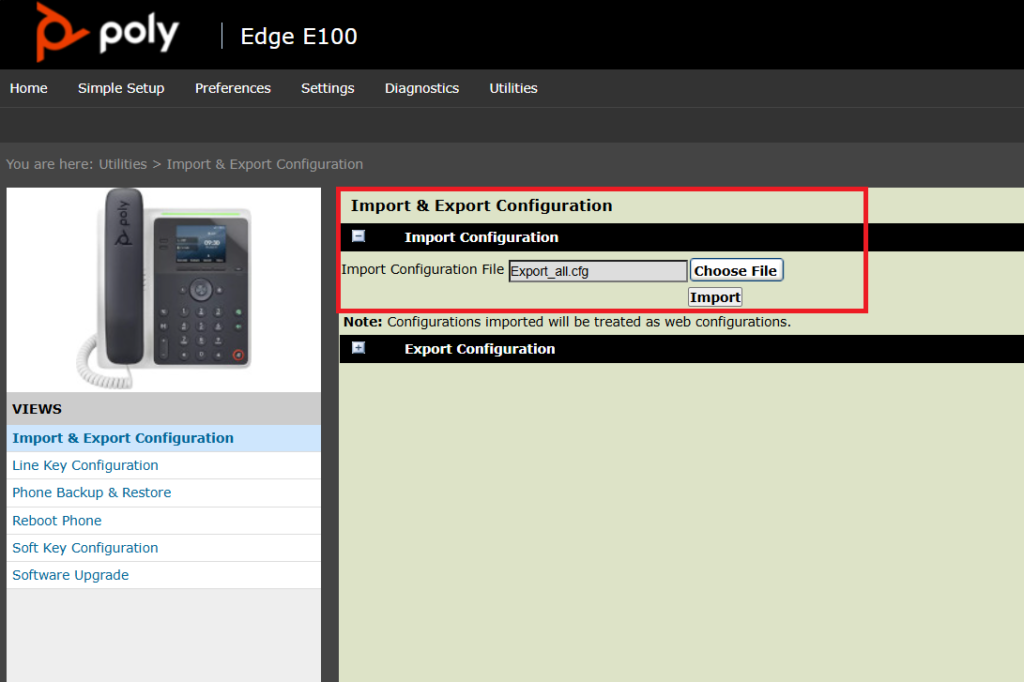
Choose File and Select Import. You should get a Information message that the file has been imported successfully.
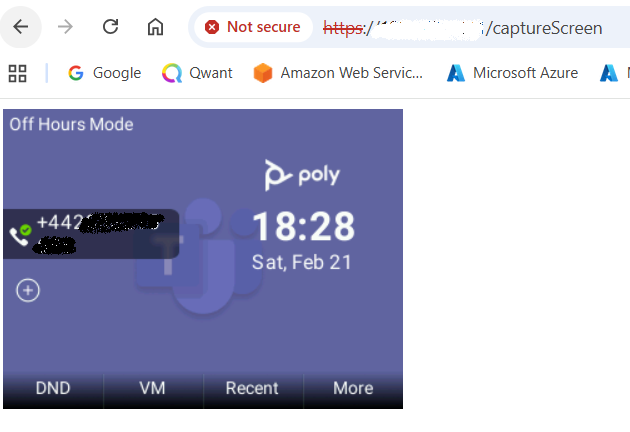
Now browse to https://<phoneIPaddress>/captureScreen.
No Comments